
The Meta pixel on your website
The pixel is a small piece of code on your site that tells Meta who came from an ad and actually sent an enquiry or bought. Without it Meta sees only clicks…

The short answer
The pixel is a small piece of code on your site that tells Meta who came from an ad and actually sent an enquiry or bought. Without it Meta sees only clicks and optimises for clicks, not customers. You can start without it – but enquiry and sales campaigns need it.
The pixel is a small piece of code on your site that tells Meta who came from an ad and actually sent an enquiry or bought. Without it Meta sees only clicks and optimises for clicks, not customers. You can start without it – but enquiry and sales campaigns need it.
Cost: Meta charges nothing for the pixel. Some site builders need a paid plan (see below). · Time: 15–30 minutes.
Steps
1. Open Events Manager
Go to Meta Events Manager, click Connect data, choose Web, then Next.
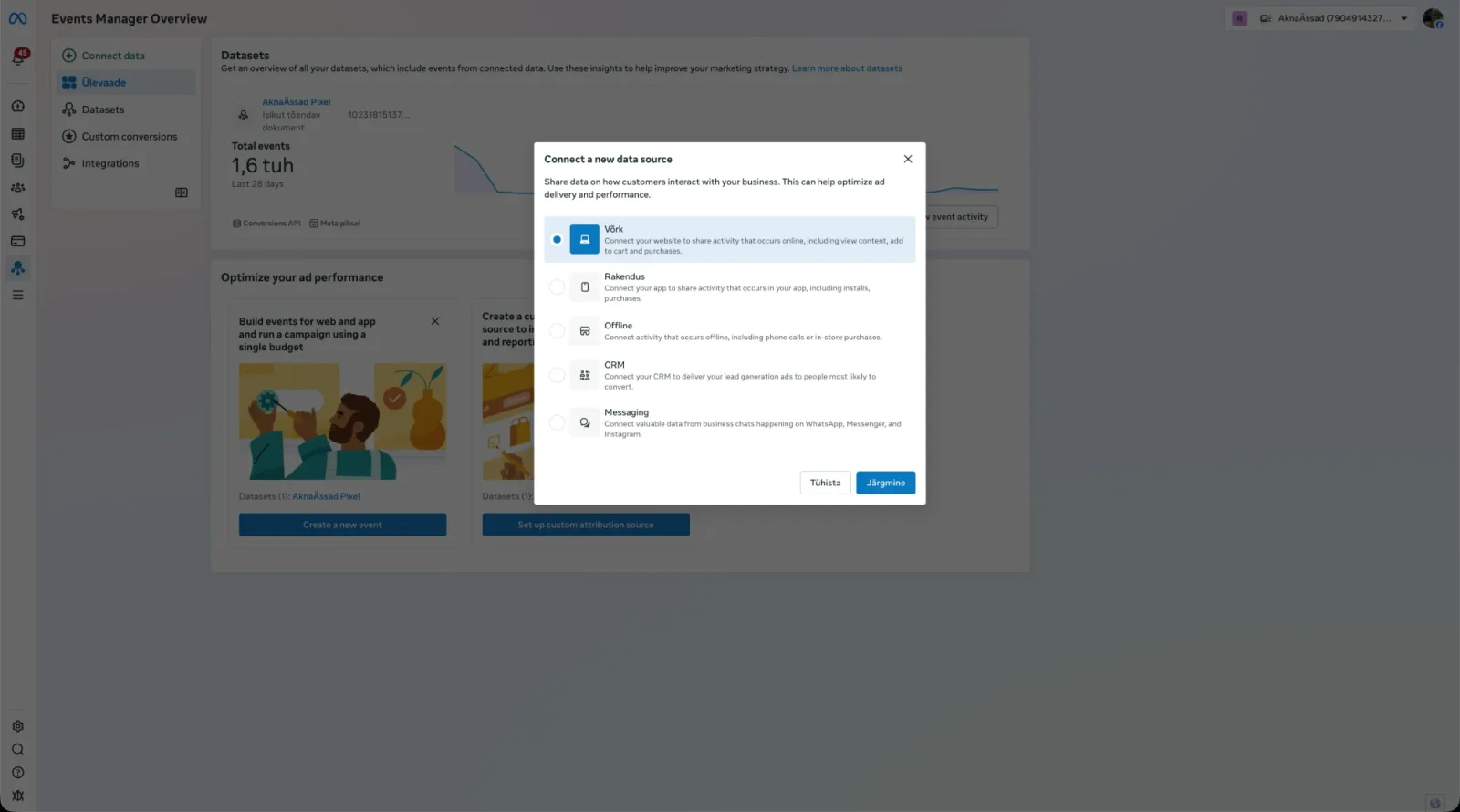
2. Create the pixel
Name it and click Create pixel. Enter your website address and click Check – Meta looks for a ready-made integration for your site builder.
3. Install it in your site builder
The simplest way is your site builder's own integration. If there is none, copy Meta's code and paste it into the header of every page, just above </head>.
- WordPress: the official plugin "Meta pixel for WordPress" (by Facebook): Plugins → Add New, search "Facebook for WordPress", Install Now, then Get Started in its settings and follow Meta's steps. WooCommerce shops have a separate plugin, "Meta for WooCommerce".
- Shopify: add the "Facebook & Instagram" sales channel by Meta: Settings → Sales channels, search "Facebook", connect your account. Pixel: Facebook & Instagram → Settings → Share data settings, turn data sharing on and pick the pixel. Remove any pixel code pasted into your theme first, or everything is counted twice.
- Wix: Marketing Integrations → Meta Pixel & CAPI → Connect. It needs a Premium plan, your own domain and the domain verified on Facebook.
- Voog: copy the Pixel ID from Events Manager. In Voog click Integrations on the bottom toolbar → Meta Pixel, paste the ID and save. Use your real domain (https://…) in the pixel, not the
*.voog.comaddress. - Zone.ee: Zone has no pixel guide of its own. A site made with Zone+ AI Assistant is WordPress – use the WordPress path. A Voog site – use the Voog path.
4. Check that it works
In Events Manager: Data sources → your pixel → Test events tab → enter your site address and click Open website. Click around your site – events should appear at once. Normal reports can take up to half an hour.
5. Tell Pilgud which pixel
When we connect Pilgud to your Meta, we pick the pixel from a list – no number to type. If the connection already exists, email info@pilgud.com and we add the pixel.
Watch out
- No events? Turn off your ad blocker and try another browser.
- With a cookie banner, the pixel sends data only after the visitor consents.
- The Chrome extension once called "Meta Pixel Helper" is now "Meta Ads Data Advisor". It asks for broad permissions – Test events does the same job without it.
Stuck?
Email info@pilgud.com – a person answers.
Checked against
- Meta: Set up and install the Meta pixel
- Meta: Test events
- WordPress: Meta pixel for WordPress
- Shopify: Facebook & Instagram by Meta
- Wix: Meta Pixel & CAPI
- Voog: Facebook pixel
Menu names were checked against the platform's own help on 28.09.2026. Menus move; if yours looks different, look for the same words in the menu.

Written by
Jan Marten Sikkar is a co-founder of Pilgud. He leads strategy and advertising – the offers, the campaigns and the numbers behind them – for Pilgud’s clients and inside Pilgud Agent.
More about the team LinkedIn